Essential Tips to Spot Phishing Emails
Comprehensive Guide to Identifying and Handling Phishing Emails and Google Drive Phishing Threats
1. How to Identify Phishing Emails
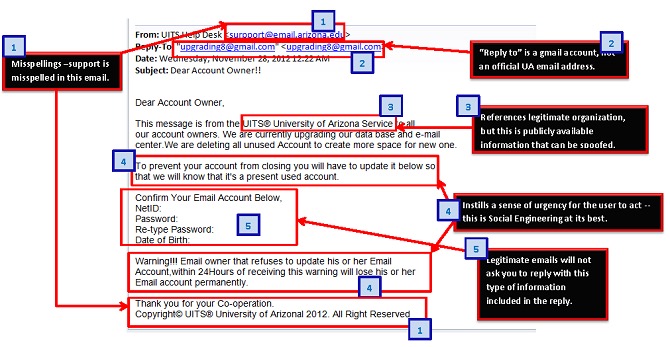
Phishing emails try to steal your sensitive information or install malware by impersonating trusted sources. Signs include:
- Urgent or threatening language pushing immediate action
- Generic greetings instead of personalized ones
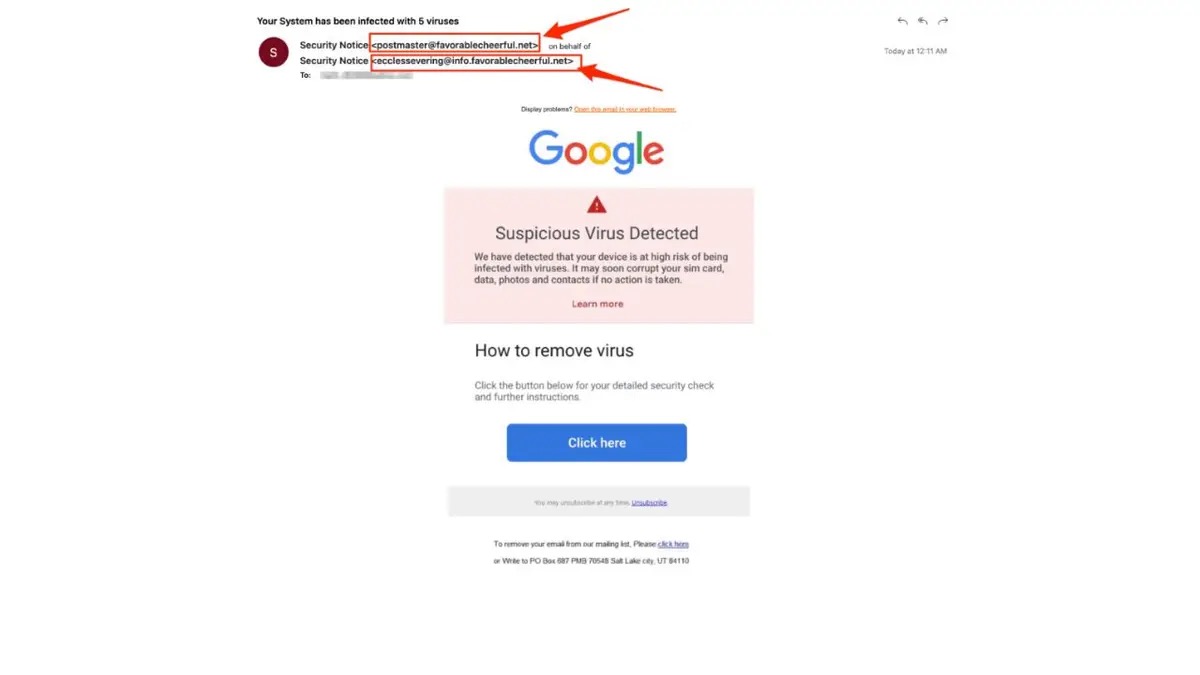
- Sender email addresses that look unusual or slightly altered (e.g., amaz0n.com)
- Suspicious links that don’t match the expected website domain
- Unexpected attachments that can contain malware
- Requests for sensitive info like passwords or payments
- Spelling and grammar mistakes
- Poorly designed emails or mismatched branding
- Odd or missing recipient details in the “To” or “From” fields
If you suspect phishing, avoid clicking links, do not download attachments, and report the email to your IT team.
2. How to Verify Sender Domain
To verify if an email is legitimately from the claimed sender domain:
- Check the full sender address, not just the display name
- Examine email headers for SPF, DKIM, and DMARC authentication results
- Confirm that the sending IP is authorized in SPF records
- Look for a verified sender badge in some email clients
- For your own domain, configure correct SPF, DKIM, and DMARC DNS entries
This helps distinguish real emails from spoofed ones.
3. Safe Email Handling Steps
- Never click unknown/untrusted links or download unverified attachments
- Avoid sending passwords or sensitive info via email
- Use strong passwords and enable multi-factor authentication (MFA)
- Be cautious of urgent or fear-inducing requests
- Educate yourself and others about phishing tactics
- Use email encryption where possible
- Avoid public Wi-Fi for sensitive email use, or use a VPN
- Report suspicious emails immediately and delete them
4. Examples of Real Phishing Emails
Common phishing scams include:
- Fake PayPal notifications threatening account suspension
- Amazon account problems with fake update links
- Google Docs sharing invitations prompting OAuth access or fake login info
- IRS refund scams requesting sensitive info
- Business email compromise impersonating executives to request sensitive actions
- Job offer scams requesting upfront fees or info
- Advance-fee frauds from fake foreign princes offering large sums of money
5. Google Docs Credential Theft Phishing Examples
Phishing attacks impersonate Google Docs sharing emails, using:
- Legitimate-looking Google login pages or OAuth permission requests from unknown apps
- Emails from compromised contacts to increase trust
- Fake OAuth apps requesting permissions instead of passwords
- Tagged comments containing malicious links inside real docs
Key red flags: unexpected login prompts, Google Drive sharing emails from unknown sources, suspicious OAuth app publishers
6. Detecting Drive-Hosted Fake Login Pages
- Verify URLs carefully; see if hosted on unusual subdomains or non-official domains
- Watch for redirects to credential phishing sites
- Detect subtle changes or poor quality in cloned pages
- Use behavioral detection tools comparing suspected pages to legitimate ones
- Analyze network requests and SSL certificates with browser developer tools
- Beware of fake OAuth permission prompts not from Google
- Train users to scrutinize unexpected login or permission prompts
7. Automated Screenshots for Phishing Detection
- Use browser automation tools (Selenium, Puppeteer) to capture how phishing pages actually render
- Helps document real-time phishing site appearances for takedown proof
- Useful to detect subtle page changes indicating evolving phishing tactics
- Can work around anti-bot protections via advanced techniques
- Screenshots aid training and evidence collection for security teams
- Combined with AI, screenshots improve visual phishing detection accuracy
8. Google Drive Link Forensic Indicators
- File metadata including ownership, timestamps, share permissions
- Google Drive activity logs tracing edits, downloads, and sharing
- Local device artifacts from Drive clients revealing sync history
- Browser cache and cookies showing accessed Drive URLs
- Memory analysis to detect active Drive sessions
- Logs for shared links display access history. They also show permissions and specify if the link types are public or restricted. These indicators help reconstruct user actions and detect unauthorized access.
- https://www.foxnews.com/tech/beware-this-latest-phishing-attack-disguised-official-email-sent-google
Sources
[1] What is Google Drive Scam? Tips to Stay Safe - Keepnet Labs https://keepnetlabs.com/blog/what-is-the-google-drive-scam-how-can-you-avoid-it
[2] Help prevent Drive spam and phishing - Google Workspace Admin … https://support.google.com/a/answer/15201687?hl=en
[3] Attack lab: Spear Phishing with Google Drive Sharing - Varonis https://www.varonis.com/blog/attack-lab-spear-phishing-with-google-drive-sharing
[4] Phishing Threats in Google Workspace - GAT Labs https://gatlabs.com/blogpost/google-workspace-phishing-threats/
[5] What You Need to Know About the Google Drive Scam https://www.terranovasecurity.com/blog/google-drive-scam
[6] How to defend against malware and phishing attacks https://workspace.google.com/blog/identity-and-security/how-guide-defending-against-malware-and-phishing-attacks
[7] A comprehensive guide to Google Drive vulnerabilities - Polymer DLP https://www.polymerhq.io/blog/google-drive-vulnerabilities/
[8] Secure Google Workspace: Essential Settings Against Phishing … https://guardiandigital.com/resources/faq/secure-google-workspace-from-phishing-malware
[9] Detecting Spam - How Google Search Works https://www.google.com/intl/en_us/search/howsearchworks/how-search-works/detecting-spam
[10] Social Engineering (Phishing and Deceptive Sites) | Documentation https://developers.google.com/search/docs/monitor-debug/security/social-engineering